Human-in-the-Loop Approvals
Human-in-the-Loop (HITL) adds a real-time approval gate to your agent workflows. When an agent requests a sensitive operation — such as deleting records, modifying production data, or accessing restricted resources — the gateway pauses execution and routes an approval request to a designated admin. Routine operations continue without interruption.
Human-in-the-Loop approvals are available on Enterprise plans. Schedule a demo to get started.
- Go to MCP Servers → select a server → toggle HITL on a tool
- Trigger that tool from an MCP client (e.g., Cursor, Claude Desktop)
- Open Approvals in the Platform → approve or reject the request
How it works
- An agent calls a tool that requires approval (e.g.,
delete_repo) - The gateway checks authorization via Permit.io (existing trust-level check)
- If the tool is approval-gated, the gateway pauses the request and creates an approval request
- Admins are notified via the Platform UI, email, and/or Slack
- An admin reviews the request and approves or rejects it
- The gateway resumes the tool call (on approval) or returns an error (on rejection/timeout)
The MCP client simply waits for the response — no client changes are needed. If no decision is made within the timeout (default: 5 minutes), the request is automatically rejected.
Approval queue
The Approvals page in the Platform is where admins review and act on pending requests. It has three tabs: Pending, History, and Notifications.
Pending approvals
Each pending approval card shows the full context needed to make a decision:
- Tool name and server — what the agent wants to do and where
- Agent and user identity — who is making the request
- Tool arguments — the exact parameters being passed (e.g., which issue ID, which repository)
- Countdown timer — time remaining before automatic rejection
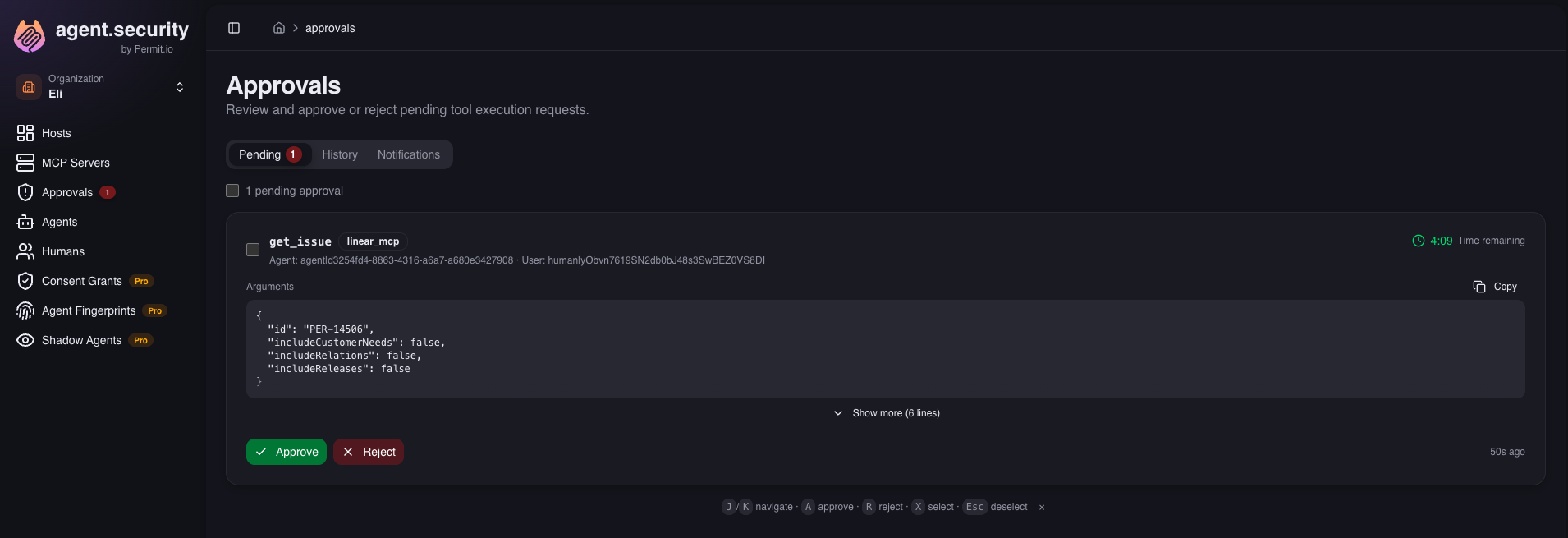
Admins can Approve or Reject each request. When rejecting, you can provide a reason — either a quick preset ("Unauthorized scope", "Suspicious arguments", "Wrong environment") or a custom message.
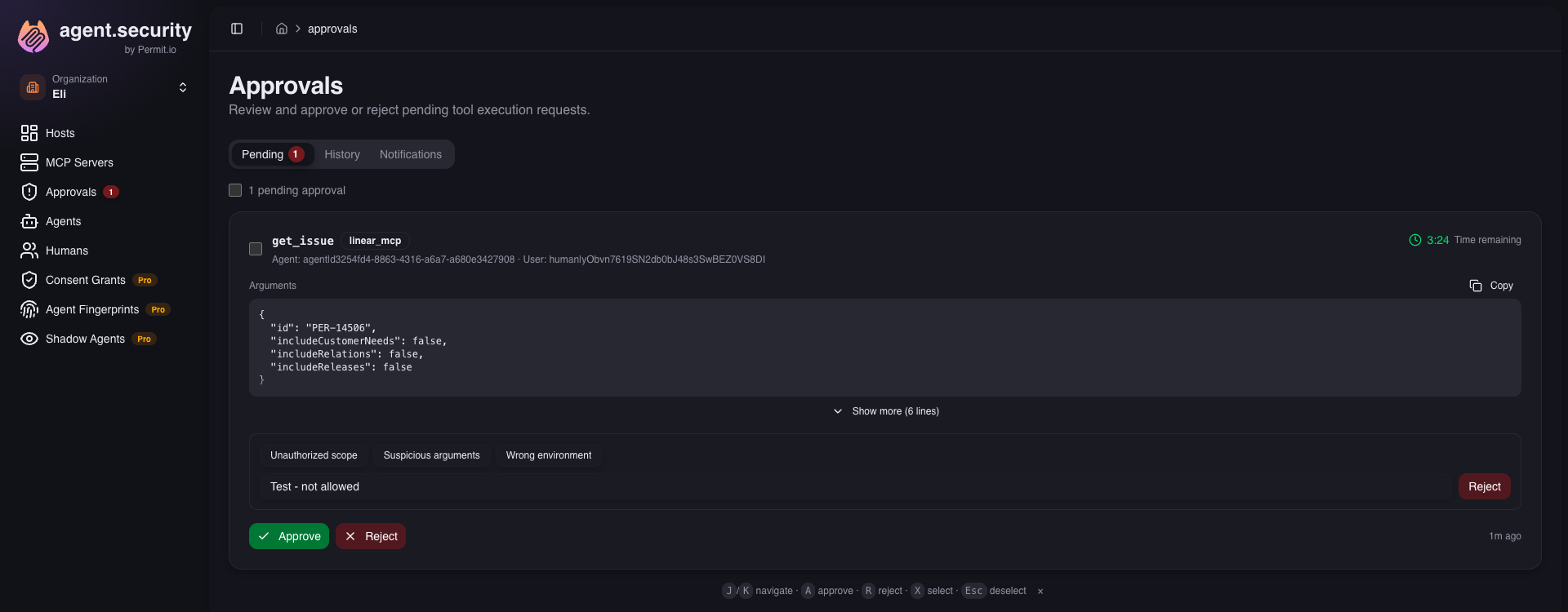
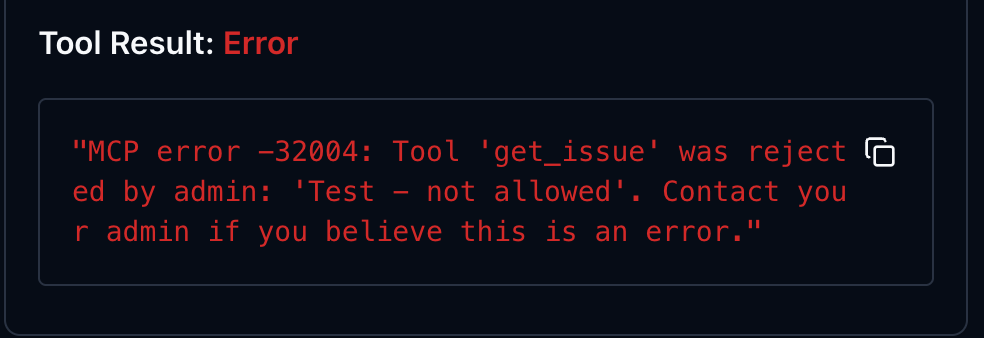
The rejection reason is included in the error message returned to the agent, so the user understands why their request was denied.
When multiple approvals are pending, select multiple cards using the checkboxes and use the batch action bar to approve or reject all selected requests at once.
J/K navigate cards · A approve · R reject · X select · Esc deselect
Approval history
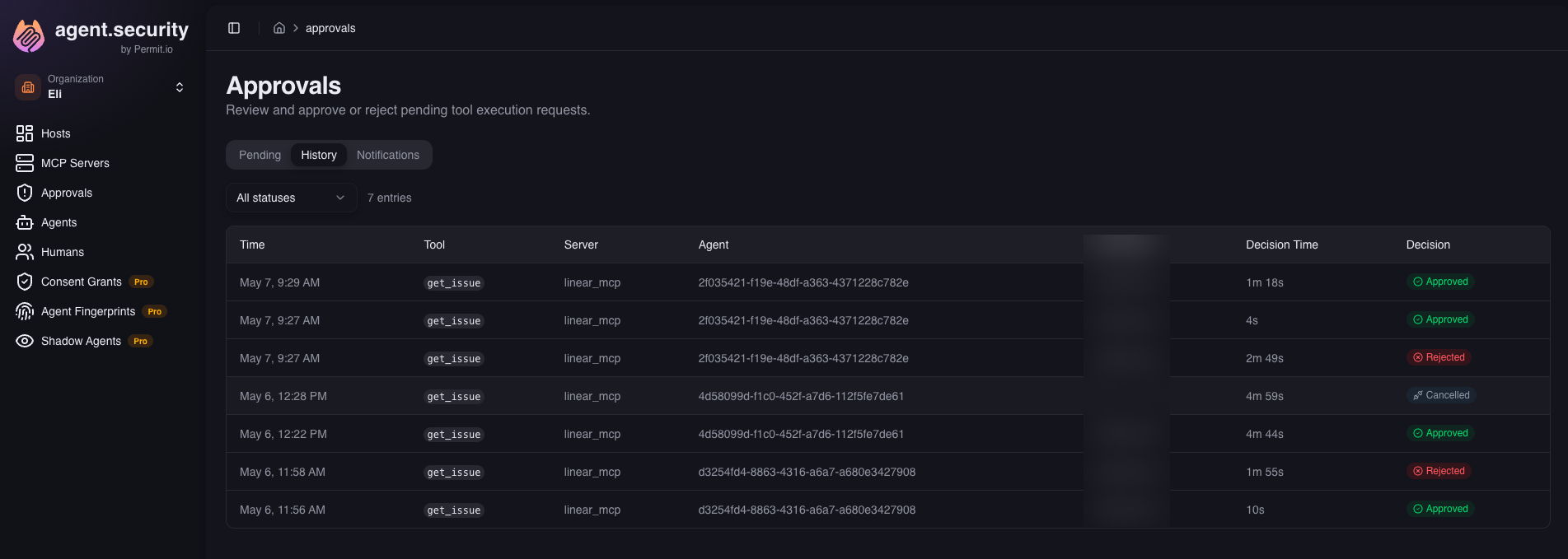
The History tab shows all resolved approvals — who made each decision, how long it took, and the outcome (approved, rejected, timed out, or cancelled). Use the status filter to narrow down by outcome.
Configuring approval policies
Per-tool approval
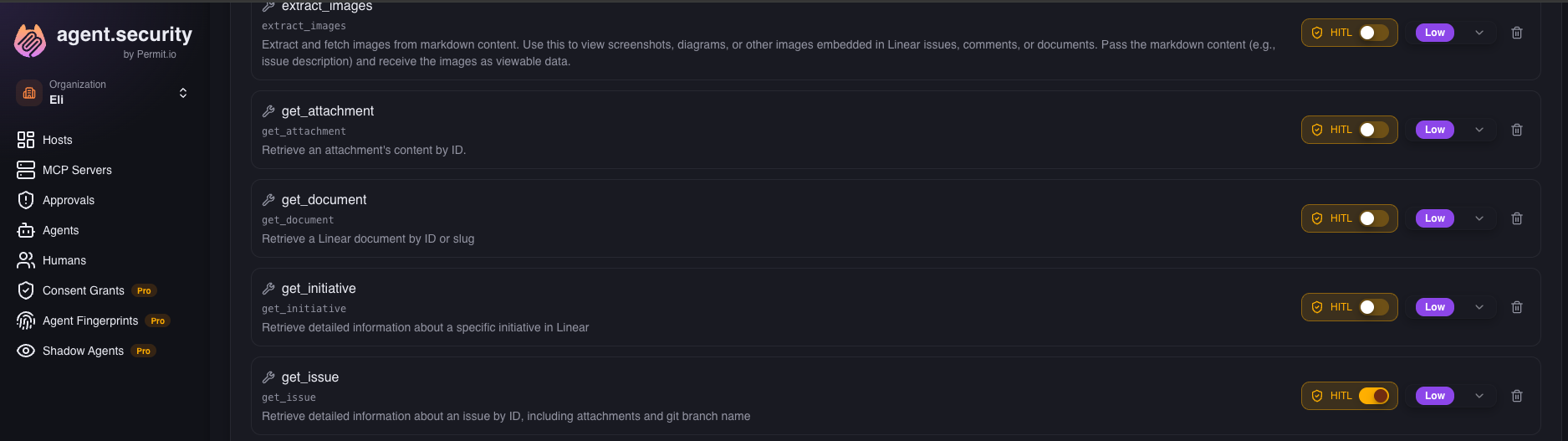
On any MCP server's detail page, each tool has a HITL toggle. Enable it to require approval for that specific tool — use this for individual high-risk operations.
Server approval policy
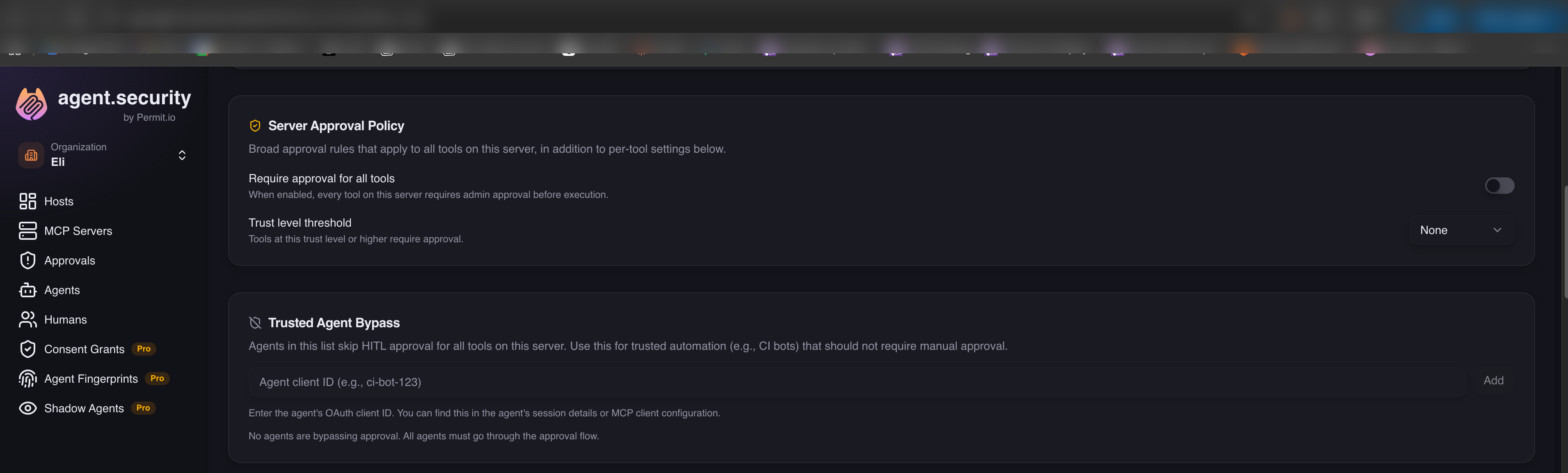
The Server Approval Policy card on the server detail page provides broader controls:
- Require approval for all tools — every tool on this server requires approval
- Trust level threshold — require approval for tools at a specific trust level or higher. For example, set to "High" to gate only the most critical tools, or "Low" to gate everything.
Per-tool toggles, server policies, and trust level thresholds all stack — if any of them requires approval, the tool call is gated.
Trusted agent bypass
For trusted automation (e.g., CI bots, scheduled pipelines) that should not require manual approval, add the agent's client ID to the Trusted Agent Bypass list. Bypassed agents skip the approval check entirely — this takes priority over all other policies.
You can find an agent's client ID on the Agents page in the Platform.
Notifications
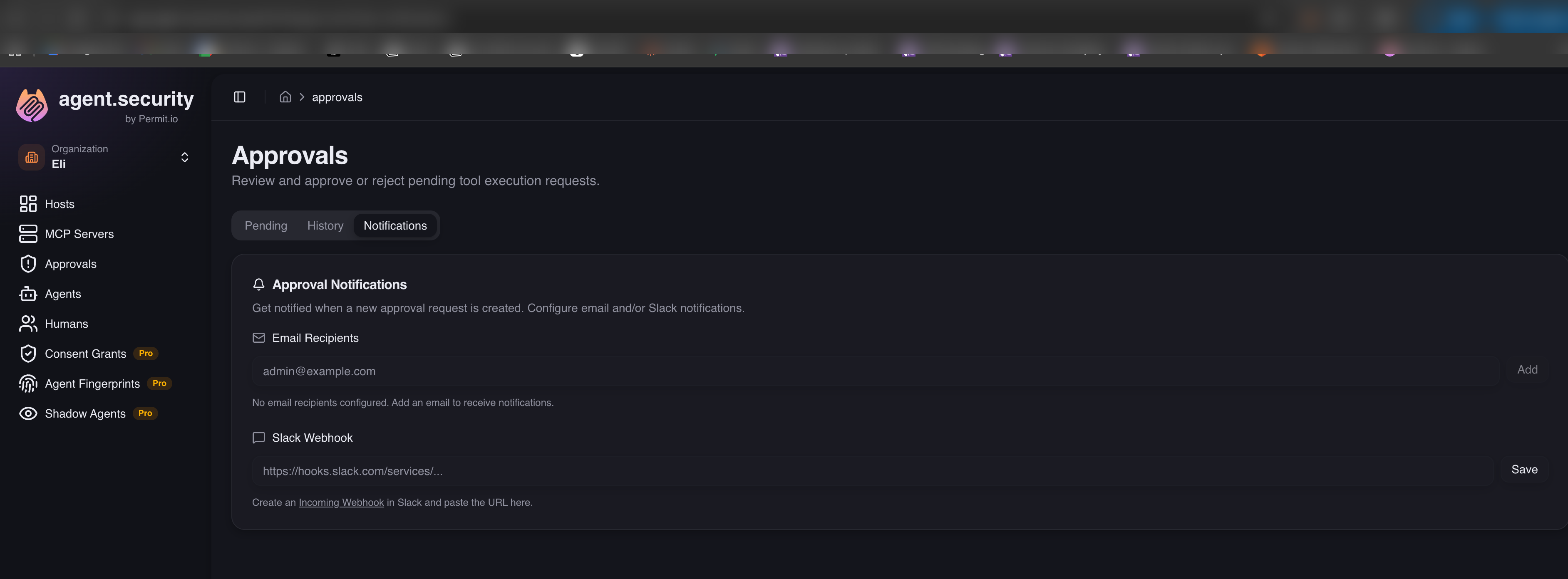
Configure where approval notifications are sent so admins know immediately when a request is waiting. Go to Approvals > Notifications to set up:
Email notifications
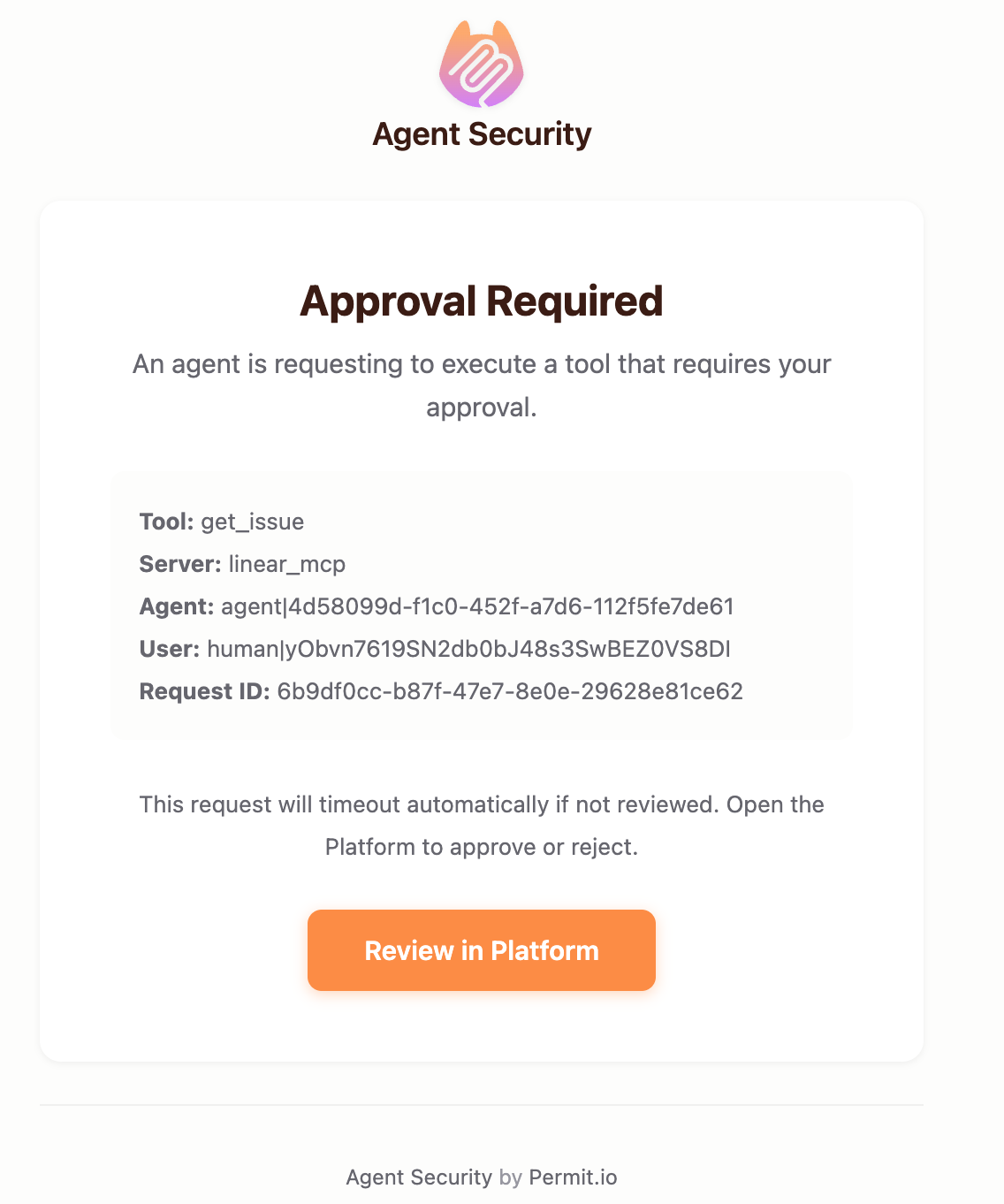
Add email addresses to receive a notification whenever a new approval request is created. The email includes the tool name, server, agent identity, and a link to review in the Platform.
Slack notifications
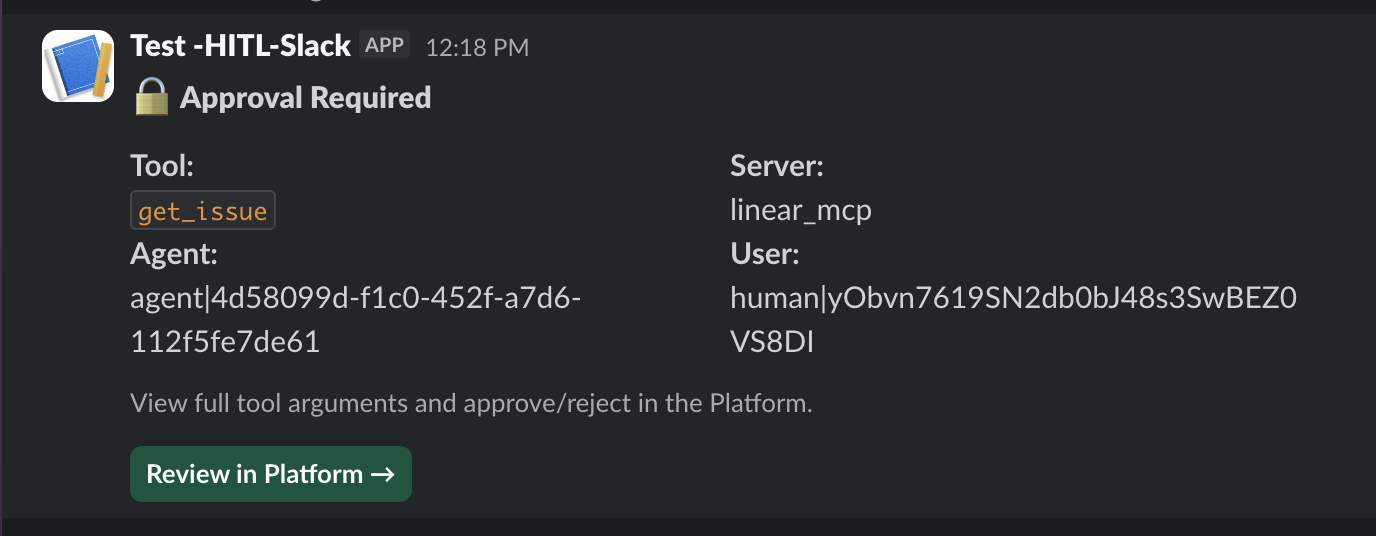
Paste a Slack Incoming Webhook URL to receive notifications in a Slack channel. The message includes the approval context and a button to open the Platform for review. For security, tool arguments are not included in Slack messages.
Browser notifications
When the Platform is open in a browser tab (even in the background), you'll receive desktop notifications for new approval requests automatically. No configuration needed.
Timeouts
- Default timeout: 5 minutes — if no admin responds, the request is automatically rejected
- Extend: Click the Extend button on the approval card to add more time while reviewing
- Timeouts always result in rejection, never automatic approval
- If the agent disconnects while waiting, the request is automatically cancelled
What the agent user sees
When a tool call is paused for approval, the agent receives a notification:
Tool 'delete_repo' requires admin approval before execution. Waiting for approval (timeout: 5 minutes)...
Most MCP clients (Cursor, Claude Desktop, Claude Code) display this message so the user knows the wait is intentional. If the request is rejected, the error message includes the reason provided by the admin.